

If you searched for Gimkit host, you probably want to start a game without wasting time figuring out every button. The main process is simple: choose a Kit, pick a live game mode, set the options, open the lobby, and share the game with your students.
The part that can cause confusion is what happens after that. Students may need help joining, you may wonder whether hosting is free, or you may be trying to host as a student instead of a teacher.
This guide walks through the actual hosting process first, then covers those common situations.
How Do You Host a Gimkit Game?
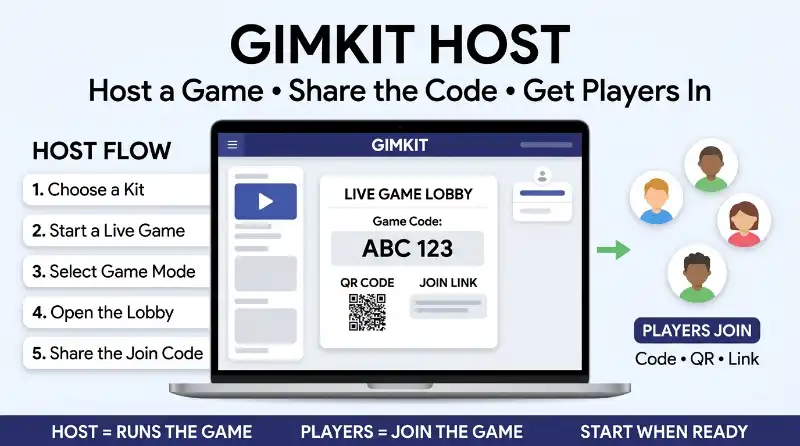
To host a Gimkit game, start from your Gimkit dashboard and choose the Kit you want to use. Look for Play Live next to the Kit, or open the Kit and choose the live-play option from there.
Gimkit then asks you to choose a game mode. The available modes can vary, so pick the one that matches the type of classroom activity you want to run.
Choose the Game Mode That Fits Your Session
After selecting a mode, continue to the game options.
The options depend on the mode you picked. Common settings can include connecting a Class, allowing students to join late, using the Nickname Generator, and setting goals for the game.
For a normal classroom game, start with the basic settings you need. You can adjust the mode-specific options if your activity requires them.
Once the settings are ready, continue to the Lobby.
The lobby is where you get the information students need to enter the game. You will see a game code, and you can also use the available join link or QR code.
When your students have joined and everything looks ready, select Start Game.
That is the basic Gimkit host process from beginning to end:
Choose a Kit → Play Live → Choose a mode → Set options → Open the lobby → Share the code → Start the game.
How Do You Get Students Into Your Gimkit Game?
Once the lobby is open, students need a way to join your live game.
The easiest option in a classroom is usually the game code. Display the code on your screen so students can see it.
Students can go to gimkit.com/join and enter the code from your screen. Depending on how the game is set up, they may then enter their name or use the nickname provided by Gimkit.
The game code is useful when everyone is looking at the same classroom screen.
You can also use a QR code. Hover over the game code in the lobby to display it, and students can scan it with their device.
A direct join link is another option. Clicking the game code can provide the direct link, which you can share with students.
What Should Students Do After You Share the Code?
Students simply open the Gimkit join page, enter the current game code, and complete the joining step shown on their screen.
If you are using Gimkit Classes and your students are signed in, the joining process can work differently because their Class connection can identify them automatically.
Before starting the game, look at the player list in your lobby.
If the students you expect are there, you can start. If someone is missing, give them a moment to join or send the join link instead of asking them to type the code again.
Can You Host a Gimkit Game for Free?
Yes, creating a Gimkit account is free, and Gimkit allows account holders to host games. New educator accounts may also receive a free trial of Gimkit Pro.
The important point is that free account access and paid Pro features are not the same thing. Some features depend on the account type or the game mode you choose.
So if your goal is simply to host a live Gimkit game, you can start with a free account and then check the options available for the specific mode you want to use.
For educators, an account is required to create Kits and host games. Student accounts are optional in many situations.
Can a Student Host a Gimkit Game?
Student hosting works differently from normal teacher hosting.
A regular student account does not simply get the same hosting access as an educator account. Student users can, however, create and host experiences through Gimkit Creative, depending on the features available to their account.
This distinction matters because searching for “how to host Gimkit as a student” can lead to instructions for two different things: hosting a normal live Kit and creating or hosting something through Creative.
How Does Student Hosting Work?
If you are a student and want to host a regular Kit for classmates, first check what type of account and hosting feature you have access to.
For normal educator-style live hosting, Gimkit requires an educator account.
For Creative, the workflow is different because you are working with a Creative experience rather than simply using the standard teacher hosting flow.
So before trying random hosting steps, identify which type of Gimkit experience you are trying to run. That tells you which hosting options should appear on your account.
Students Can’t Join? Here Is the Quick Fix
You have opened the lobby and shared the Gimkit host code, but a student still cannot get in. Start with the simple checks before changing the whole game setup.
1. Share the Current Game Code
Look at the code shown in your current lobby and send that code again.
If you started a new live session, use the new code from that session. An old code from another game will not help students enter the current lobby.
2. Ask Students to Reload the Join Page
Students can open gimkit.com/join again and enter the current code.
A simple reload can also help when the join page has been open for a while.
3. Use the Join Link Instead
If typing the code keeps causing problems, share the direct join link from the lobby.
You can also display the QR code and let students scan it. This removes the need to type the code manually.
If most students can join but one student cannot, check that student’s browser, device, or internet connection separately. There is no reason to change the whole game when the problem affects only one player.
What If the Gimkit Game Will Not Start or Keeps Loading?
A game that will not start needs a slightly different check from a student who cannot join.
First, return to the lobby and make sure the Kit, game mode, and settings are ready. Game options can vary between modes, so an option you see in one mode may not appear in another.
If the page itself is slow or stuck, refresh it and try again.
When several devices have trouble at the same time, check the host’s internet connection first. When only one student is having trouble, check that student’s device or connection.
When Should You Restart the Game?
Restart the session when the lobby or game remains stuck after a refresh and the normal setup looks correct.
Tell students that you are starting a new session before you do it. Then use the new lobby information and share the new code or join link.
This prevents students from continuing to use information from the old session.
Gimkit Host FAQ
Can the Host Join the Game as a Player?
The host runs the live session and manages the game from the host interface. Students join through the game’s code, QR code, or join link.
Whether the host can also participate as a player depends on the specific game mode and setup, so check the rules for the mode you selected.
Can Students Join After the Game Has Started?
Some Gimkit live games support Join Late.
If the option is available for your selected mode, you can enable it in the game settings. This allows students who arrive late to enter after the session has already started.
If the option is not available, the selected game mode may not support it.
Does the Host Need to Stay on the Game?
The host controls the live session from the host interface, including player information, game management, and ending the game.
For that reason, keep access to the host screen while the game is running. Students can continue playing on their own devices while you manage the session.
What Happens When a Gimkit Live Game Ends?
When the live session ends, that active game is finished for the students.
You can review the results and then start another live session if you want to run another activity.
For another game, use the new lobby and share its joining information with the students.
Final Takeaway
Hosting Gimkit becomes much easier once you understand the basic flow.
Choose your Kit, select Play Live, pick a game mode, set the options, open the lobby, and share the joining information. Then wait for your students and start the game.
If students cannot join, check the current code, reload the join page, or use the direct link or QR code. If the game itself is stuck, check the setup and connection before restarting the session.
That covers the main things you need to know about being a Gimkit host without turning a simple classroom activity into a complicated setup.

I’m James Carter, a professional writer at Meanexplainer.com, where I write about word meanings, slang, phrases, grammar, and everyday language.
I created my writing approach around one simple idea: understanding a word should be easy, practical, and useful. My articles go beyond basic definitions by explaining how words and phrases are actually used in conversations, texting, social media, and everyday writing.
At Meanexplainer.com I focus on turning confusing language questions into clear, straightforward answers. I regularly cover modern slang, commonly confused words, expressions, grammar, and the changing ways people communicate online.
My goal is to help readers find the right meaning, understand the context, and use words and phrases with confidence.


