

If your teacher asked you to visit JoinCRS.com, you may be wondering what this website is and why you need it. The name can look unfamiliar, especially if you have never used it before.
JoinCRS is connected with Classroomscreen, a classroom tool that teachers can use to run activities with students. If you have been given a JoinCRS code, your main job is usually simple: use that code to enter the activity your teacher has prepared.
What Is JoinCRS.com and Why Did Your Teacher Ask You to Use It?
If you reached JoinCRS because your teacher gave you a code, you do not need to treat it like a normal website where you browse around and create an account first.
The current Join Classroomscreen page mainly asks you to enter a code and provides a separate option for teachers to sign in.
That tells us something important about the purpose of the page. It is designed around joining a classroom activity rather than giving students a large dashboard to explore.
JoinCRS and Classroomscreen are connected
The easiest way to understand the two names is this:
Classroomscreen is the classroom platform used by teachers, while JoinCRS is used by students to enter certain activities through a code.
So, if your teacher says:
“Go to JoinCRS and enter this code,”
they are giving you a way to connect to the activity they are running.
You do not need to search for a different classroom website just because the name on the page says JoinCRS.
Why does the website ask for a code?
The code connects you to the particular activity or session your teacher wants you to join.
Think of it like a room number. The website is the entrance, while the code helps you get to the right classroom activity.
This also explains why your teacher gives you the code instead of expecting you to find one yourself.
What should you expect when you open JoinCRS?
The current joining page is very simple. It shows a place to enter a code and a Go button. It also has a separate teacher sign-in option.
So if you open the page and think, “Where is the big student login button?” there may be nothing wrong.
You are normally starting with the code provided by your teacher.
Once you understand that, the next step is straightforward.
How Do You Join a Classroomscreen Activity on JoinCRS?
If your teacher has already given you a JoinCRS code, you can focus on the actual joining process instead of looking for an account or complicated setup.
Step 1: Get the current code from your teacher
First, make sure you have the code for the activity you are supposed to join.
Your teacher may display it on the classroom screen, send it to you, or provide it through your class communication system.
If you do not have a code, do not guess one. Ask your teacher for the current code.
Step 2: Open the JoinCRS page
Open the JoinCRS joining page in your browser.
The page currently shows a code-entry field where you can enter the number provided for the activity.
You do not need to start by looking for teacher tools. The page separates the teacher sign-in option from the student-style code entry.
Step 3: Enter the code carefully
Type the code exactly as your teacher provided it.
Take a quick look before continuing. A single wrong number can prevent you from reaching the intended activity.
For example, if your teacher gives you:
1234 567
do not replace, remove, or invent any numbers.
Step 4: Select Go
After entering the code, use the Go button on the page.
The purpose of this step is to submit the code and move into the activity connected to it. The current Join Classroomscreen page uses this code-and-Go layout.
Step 5: Follow the activity your teacher opened
After you successfully enter the session, what you see next depends on the activity your teacher is running.
For example, you may be asked to respond to a classroom question or participate in a live activity.
So don’t worry if your screen does not look exactly like another student’s screen. The teacher’s activity determines what participants see.
Can you use a QR code instead?
A QR code can also be used in Classroomscreen’s remote Poll setup. The official Classroomscreen documentation explains that students can visit JoinCRS and enter the displayed code, while a QR code can provide another way to access the activity.
If your teacher provides a QR code, scanning it can save you from typing the code manually.
At this point, the main joining problem is solved: you know where to go, where the code comes from, and what to do with it.
Do You Need an Account, App, or Special Device to Join JoinCRS?
This is a common point of confusion. You may see a teacher sign-in option and assume that you also need to create an account before joining.
For a student who has been told to join an activity with a code, the first step is the code-entry process, not teacher account setup. The current Join Classroomscreen page clearly separates the code entry from the teacher sign-in option.
You do not start by using the teacher sign-in
If you are a student joining an activity, you should not choose the teacher sign-in option simply because it is visible on the page.
That option is for the teacher side.
Your teacher has already created or started the activity, and your job is to use the joining method they provide.
You can start from a browser
The Join Classroomscreen page works as a web page, so the basic joining process starts in a browser rather than requiring you to begin with a separate desktop program.
This is useful when you are joining from a school computer, Chromebook, phone, tablet, or another supported device with internet access.
What if you are using a phone?
A phone can be useful when your teacher gives you a JoinCRS code or QR code.
Open the joining page, use the code provided by your teacher, and continue from there.
If a QR code is available, scanning it can make the first step easier.
Do you need to download an app first?
For the basic JoinCRS joining process, the important starting point is the web-based Join Classroomscreen page and the activity code. The current page itself provides the code-entry option directly.
So, if your teacher simply tells you to join with a code, do not assume that you need to install an app before trying.
What if you do not have the code?
This is where you should stop and ask your teacher.
The code is not something you should make up yourself. Your teacher needs to provide the code for the activity you are supposed to enter.
Once you have the correct code, you can return to the joining page and continue.
That clears up the basic setup: you need the correct activity access method, and for code-based joining, that means the code provided by your teacher.
What Should You Do If Your JoinCRS Code Does Not Work?
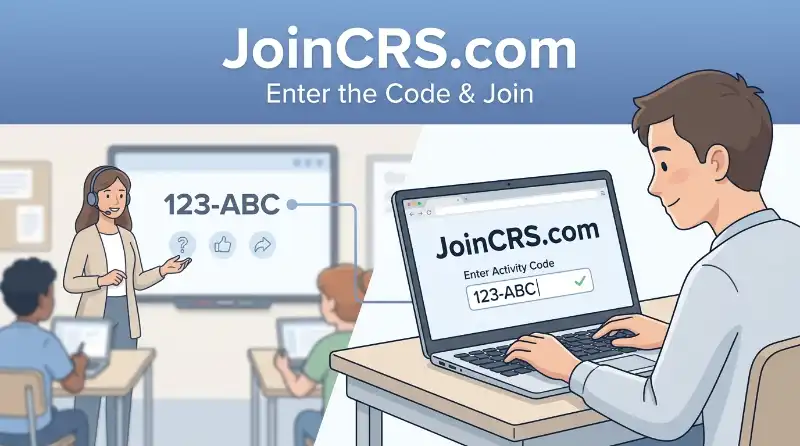
A JoinCRS code is normally provided by the teacher for a specific classroom activity. If the code is rejected or the page does not let you continue, do not assume that the whole website is broken.
Start with the code itself. Enter it again carefully and make sure you have not added an extra space or missed a number. The current Join Classroomscreen page provides a code field and a Go button for joining.
Check That You Have the Current Code
Ask your teacher to confirm that the code is still the one being used for the activity. A classroom session may have changed while you were trying to join.
If your teacher displays a QR code, you can also scan it instead of typing the code manually. Classroomscreen documents QR-code access as an option for students joining remote Poll activities.
Try the Browser Again
If the code looks correct but the page does not continue, refresh the page and enter the code again. You can also reopen the JoinCRS page in your browser.
School networks can sometimes block parts of Classroomscreen. The company says network restrictions can affect features such as Polls and syncing, and it specifically lists its join application as part of the domains used for participant access.
If the problem continues, tell your teacher exactly what happens on your screen. They can confirm whether the classroom activity is active or whether you need a new code.
Is JoinCRS.com Really Connected to Classroomscreen?
Yes. JoinCRS is not simply an unrelated website that happens to use a similar name.
Classroomscreen’s own terms identify classroomscreen.com and joincrs.com as web-based applications offered by Classroomscreen.
The company’s help material also tells students to use www.joincrs.com when taking part in a remote Poll. The current setup uses the Join Classroomscreen page for entering a participation code.
There is another useful sign when checking the relationship. Classroomscreen’s current network documentation lists join.classroomscreen.com as the join application used for participants in its remote voting functionality.
So, if you reached JoinCRS because your teacher gave you a classroom code, the connection to Classroomscreen is documented by Classroomscreen itself.
Is JoinCRS Safe to Use for a Class Activity?
The safest way to use JoinCRS is to treat it as a classroom participation tool rather than a place to share unnecessary personal information.
Classroomscreen’s privacy policy specifically applies to its online activities on joincrs.com as well as its other listed domains. The policy says the company does not sell personal information and explains that it collects and uses personal data for stated purposes.
Its terms also prohibit users from asking for another user’s password or account information and prohibit harvesting usernames or email addresses.
For a student, the practical rule is simple:
- Use the code supplied by your teacher.
- Do not give your password to another person.
- Do not enter private information unless the activity specifically requires it and your teacher has explained why.
- If a page looks different from what your teacher showed you, ask before entering information.
You do not need to treat every unfamiliar screen as dangerous. At the same time, checking the website and following your teacher’s instructions is a sensible habit.
Do Students Have to Pay to Use JoinCRS?
Students generally do not need to purchase a Classroomscreen subscription just to participate in a classroom activity through the joining system.
The important distinction is between joining an activity as a student and using Classroomscreen as a teacher.
Classroomscreen currently describes its main service as free to use, with additional features available through its Pro subscription. Its terms also distinguish between Basic, Pro, and School subscriptions.
That means you should not assume that seeing information about a paid teacher plan means you need to pay to enter a classroom activity.
If a teacher has given you a JoinCRS code, follow the student joining process first. If the activity asks you for something unexpected, check with the teacher before continuing.
What Happens After You Join a JoinCRS Activity?
Getting through the code screen is only the first step. What you see next depends on the activity your teacher has prepared.
One documented use is remote Poll participation. Classroomscreen explains that students can visit JoinCRS to cast their votes while the teacher runs the Poll from Classroomscreen. Students can also use a QR code when one is displayed.
For example, your teacher may:
- Display a question on the classroom screen.
- Give students a JoinCRS code.
- Ask students to enter the code.
- Show a Poll question.
- Ask students to submit their response.
- Move to another question or activity.
The exact screen can vary because Classroomscreen has several classroom tools and widgets. Its current help center lists Poll, Randomizer, Scoreboard, Clock, and other classroom features.
So if you successfully joined but are not sure what to click next, look at the teacher’s instructions first. The activity itself determines what you should do.
What If You Can Open JoinCRS but Cannot Participate?
This is a different problem from having a bad code.
If the JoinCRS page opens and your code is accepted but the activity does not respond, first give the page a moment and check whether the teacher has started the activity.
Then try a simple refresh. If that does not help, reopen the joining page and enter the current code again.
A school network can also cause problems. Classroomscreen says restricted school networks or filtering services can prevent parts of its app from loading correctly. Its documentation specifically notes that this can affect Polls and other functions.
If other students are also having the same problem, tell the teacher. That can help separate a single-device problem from an issue with the classroom session or school network.
If only your device is affected, try:
- Refreshing the page.
- Reopening the browser.
- Checking that your internet connection is working.
- Trying the current code again.
- Using the QR option if the teacher provides one.
- Asking the teacher whether the activity is still active.
Classroomscreen also provides a support/contact route for product and technical questions if a problem cannot be resolved through normal troubleshooting.
Frequently Asked Questions About JoinCRS.com
Can you use JoinCRS without a class code?
For the normal student joining process, you should expect to receive a code or joining method from the teacher. The current join page is built around entering a code.
Can you use JoinCRS on a Chromebook?
A Chromebook can be used through its web browser as long as the required page and classroom activity can load normally. If a school network blocks the required service, the issue may be caused by network restrictions rather than the Chromebook itself.
Can you join from a phone?
Yes, a phone can be used to access the web-based joining page. If your teacher provides a QR code, scanning it can also be an easier way to reach the activity.
Does the same JoinCRS code always work?
You should use the current code supplied by your teacher rather than assuming an old code will continue to work. If an older code fails, ask the teacher for the active code.
Is JoinCRS the same as Classroomscreen?
They are closely connected services under Classroomscreen. Classroomscreen’s own terms include both domains in its web applications, while its help materials describe JoinCRS as the way students can participate in remote Poll activities.
Final Takeaway
JoinCRS.com is mainly useful when a teacher wants students to join a Classroomscreen activity. The basic process is straightforward: get the current code, open the joining page, enter the code, and follow the activity instructions.
If the code fails, check the code first, then the classroom session, browser, and network connection. If you can join but cannot participate, the teacher can help confirm whether the activity is active.
Most importantly, you do not need to turn JoinCRS into a complicated account setup. For a student joining a classroom activity, the code provided by the teacher is usually the key step.

I’m James Carter, a professional writer at Meanexplainer.com, where I write about word meanings, slang, phrases, grammar, and everyday language.
I created my writing approach around one simple idea: understanding a word should be easy, practical, and useful. My articles go beyond basic definitions by explaining how words and phrases are actually used in conversations, texting, social media, and everyday writing.
At Meanexplainer.com I focus on turning confusing language questions into clear, straightforward answers. I regularly cover modern slang, commonly confused words, expressions, grammar, and the changing ways people communicate online.
My goal is to help readers find the right meaning, understand the context, and use words and phrases with confidence.


